In short
- Sensitivity: look at 9, aim at 8, acceleration at 6, and the response curve on Precision.
- Aim assist: Lock-On targeting with Aim Assist Strength on the highest setting.
- Motion blur: turn it off (0) for a cleaner picture.
- Camera: follow speeds at 10 for a snappier, more responsive camera.
GTA 6 is out, and the settings menu is huge. If you've come from Fortnite, Call of Duty or GTA 5, the default aiming and camera can feel slow and floaty, and getting them right makes a big difference, especially in gunfights and chases.
We spent time testing the options on PS5 to find the best GTA 6 settings. Here's every setting we use, section by section, with what to change if you're on Xbox or your controller is a bit worn.
Best GTA 6 controller settings
Start with Control Scheme on Default (1/3). It's the layout the game is built around, so there's no reason to change it. Set Preview to On foot.
Best GTA 6 sensitivity settings
Aim and look sensitivity is the most important thing to get right. Moving to GTA 6 after another game takes some getting used to, and these numbers are a good middle ground: quick enough to turn fast, steady enough to aim.
| Setting | Value |
|---|---|
| Horizontal Look Sensitivity | 9 |
| Vertical Look Sensitivity | 9 |
| Horizontal Aim Sensitivity | 8 |
| Vertical Aim Sensitivity | 8 |
| Look Acceleration | 6 |
| Aim Acceleration | 6 |
| Aim Response Curve | Precision |
Keep horizontal and vertical the same. If they're different, aiming feels off, because the crosshair moves faster one way than the other.
Leave the inverted controls on their default settings unless you've always played inverted.
Best DualSense settings on PS5
GTA 6 makes heavy use of the PS5 controller. Rockstar says haptic feedback is built into the whole game and can be adjusted in the accessibility settings, VGC reports.
| Setting | Value |
|---|---|
| Vibration and Haptics Strength | 10 |
| Deadzones | 2 |
| Adaptive Triggers | On |
| Adaptive Triggers Vibration | On |
| Adaptive Speed Limiter | On |
| Touch Pad Button | Map |
| Light Bar Effect | On |
About the deadzone: 2 is right for a new controller. If your controller has stick drift, where your character or camera moves when you're not touching the stick, raise it to 4 or 5 until the drift stops.
On Xbox, the vibration and deadzone advice is the same. The adaptive triggers, touch pad and light bar options are PS5 only.
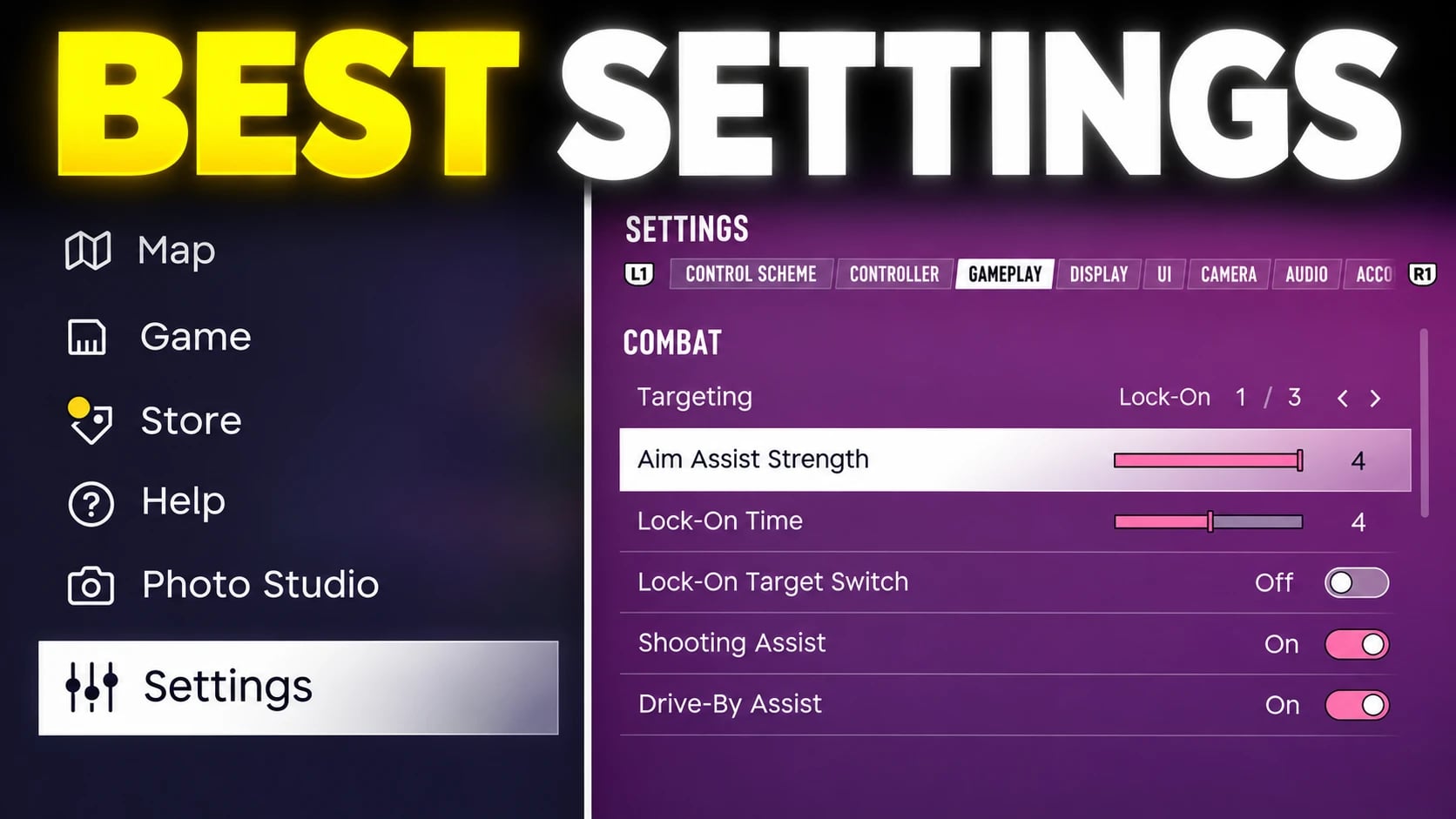
Best GTA 6 combat and aim assist settings
Combat settings matter more than you'd think, especially if you're new to GTA. These make gunfights much easier.
| Setting | Value |
|---|---|
| Targeting | Lock-On |
| Aim Assist Strength | Highest |
| Lock-On Time | 4 |
| Lock-On Target Switch | Off |
| Shooting Assist | On |
| Drive-By Assist | On |
| Quick Draw | On |
| Cover Selection | Option 1 |
| Holster in Vehicle | Option 1 |
| Stand and Sprint | Off |
Turn off the remaining options under these.
Why Lock-On? It snaps your aim to the nearest target when you aim down sights, which is the easiest way to win fights on a controller. With Aim Assist Strength on the highest setting, the game helps you stay on target as they move.
Why turn Target Switch off? It stops your aim jumping to a different enemy in the middle of a fight.
Best GTA 6 display settings
Display is mostly personal preference, but a few settings really help.
| Setting | Value |
|---|---|
| Player Status Effects Intensity | 5 |
| Hit Effects Intensity | 5 |
| Awareness Intensity | 5 |
| Motion Blur Strength | 0 |
| Dismemberment | On |
| Blood and Gore | High |
| Flashbang | Dark |
| Focus Trail Colourblind Mode | Off |
| Brightness Reduction | Off |
| High Contrast Shaders | Off |
Turn the three intensity settings up to 5. They make it much clearer when you're hurt, being shot at or about to be spotted, so you react faster in combat.
Turn motion blur off. At 0, the picture stays sharp when you turn the camera quickly. GTA 6 runs at 30 FPS on consoles, and motion blur can make that feel smeary.
GTA 6 settings for kids and younger players
GTA 6 is rated 18, but if a younger player in your house is using it, the display menu is the place to tone things down. Set Blood and Gore to its lowest option and turn Dismemberment off.
Best GTA 6 UI and HUD settings
These keep the screen tidy without hiding anything useful.
General
- Language: English
- UI Text Size: Medium
- Colour Adjustments: Off
- Map Blip, Minimap Blip and In-World Marker size: Default
Subtitles
- Subtitles: Missions only. Turn them on for everything if you prefer.
- Closed Captions, Speaker Names and Background: Off
- Size: Small
Navigation
- Minimap: On, at the default size
- Compass: Off
- GPS Route, GPS Turn Indicators, In-World Markers, Door Markers, Interaction Markers and Altimeter: On
Best GTA 6 reticle settings
| Setting | Value |
|---|---|
| Persistent Centre Dot | Off |
| Reticle Hit Markers | On |
| Reticle Size | Default |
| Reticle Shape | Complex |
| Equipped Reticle Visibility | 10 |
| Aiming Reticle Visibility | 10 |
| Reticle Messages | On |
| Projectile Arc | Off, with Toggle On |
Hit markers tell you straight away when a shot lands, which helps you learn each weapon faster.
Notifications and prompts
- Combat: everything on.
- HUD Notifications: everything on, except Street Names, which just add clutter.
- Progress Notifications: Collections, Stunts, Basketball and Map Updates on. Weapons, Vehicles, Animals and Challenges off.
- Player and Vehicle Status: everything on.
- Prompts: everything on, with Prompt Visibility at 7, except Vehicle Prompt, which we turn off.
- Activities: everything on.
Units of measurement: Imperial, Pounds, Degrees and the 12-hour clock. If you're in the UK or Europe, metric works just as well.
Best GTA 6 camera settings
Turning the follow speeds up to 10 is the biggest single improvement in the camera menu. It makes the camera keep up with you, so you're not waiting for it to catch up when you turn a corner or spin a car round.
| Setting | Value |
|---|---|
| On foot height | Medium |
| On foot horizontal and vertical follow speed | 10 |
| Land and water vehicle height | Medium |
| Vehicle horizontal and vertical follow speed | 10 |
| Vehicle follow delay | 0 |
| Passenger horizontal and vertical follow speed | 4 |
| Aircraft horizontal and vertical follow speed | 5 |
| Aircraft Follow Roll | On, at speed 5 |
| Aircraft Roll Deadzone Range | 10 |
| Underwater follow speed | 2 |
| Cinematic Kill Shot Frequency | 3 |
| Cinematic Vehicle Crash Frequency | 3 |
| Idle Camera | On |
Comfort: everything on, with Camera Bob at 10 and the Phone Display at default. If camera movement makes you feel ill, turn Camera Bob down first.
Best GTA 6 audio settings
We turn everything in the Audio menu's extra options off, so you just hear the game. Volume levels are up to you, depending on your TV or headset.
Watch: our video
Nothing loads from YouTube until you press play. Playing it loads the video from youtube-nocookie.com, and Google can then store information on your device (see our cookie policy).
FAQ
What is the best sensitivity in GTA 6?
We use 9 for look sensitivity and 8 for aim sensitivity, with acceleration at 6 and the Precision response curve.
Should you turn off motion blur in GTA 6?
Yes, if you want a sharper picture. Set Motion Blur Strength to 0.
What is the best aim assist setting in GTA 6?
Lock-On targeting with Aim Assist Strength on the highest setting, and Lock-On Time at 4.
What deadzone should I use in GTA 6?
2 on a new controller. If you have stick drift, raise it to 4 or 5.
Are these the best GTA 6 settings for Xbox too?
Yes. Everything is the same on Xbox Series X|S, apart from the PS5-only DualSense features.
Read next
- GTA 6 PS5 vs Xbox Series X: specs and FPS
- GTA 6 launch day: 9 mistakes to avoid
- GTA 6 Twitch Drops: free badges and the Golden Iguana
We'll update this guide if Rockstar adds new settings in a patch.